Follow these steps to install the Contio MeetingOS app, and connect your calendar to experience AI that will transform your meetings from top to bottom!
1. Sign into your Contio Account
You can use your Google or Microsoft account to sign into MeetingOS, or enter your email address to receive a verification code.
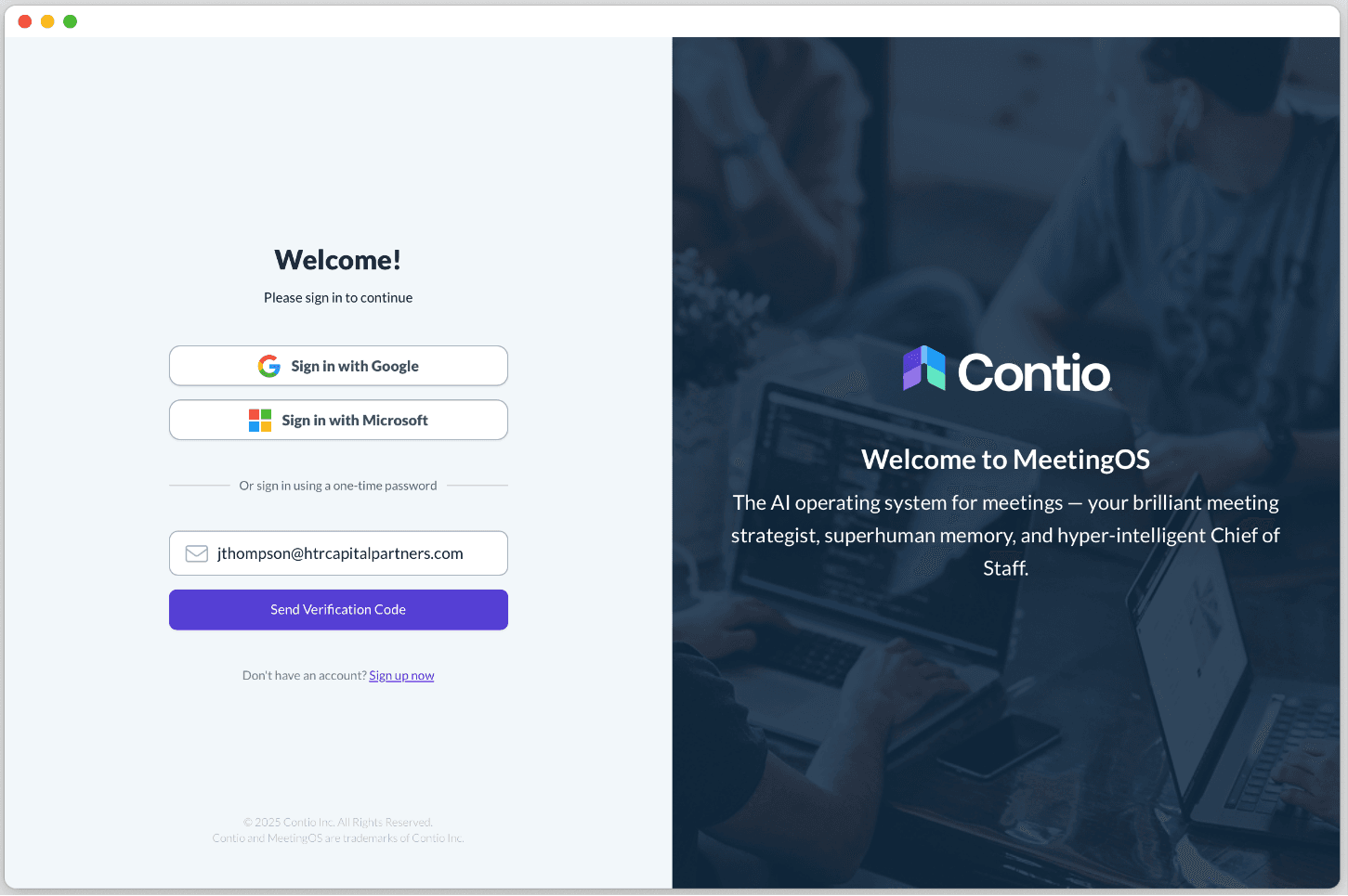
Once you’ve signed in for the first time, we recommend setting up SMS verification for even faster authentication. To set up SMS verification:
Click your name in the lower left-hand corner to open Profile Settings
On the Profile Settings page, fill in your mobile number and select the checkbox below the phone number field to allow Contio to use SMS.

2. Connect your Calendar
Connect your Google or Microsoft Outlook calendar so MeetingOS is ready to help you with your upcoming scheduled meetings:
Click the Connect your Calendar button on the Today page
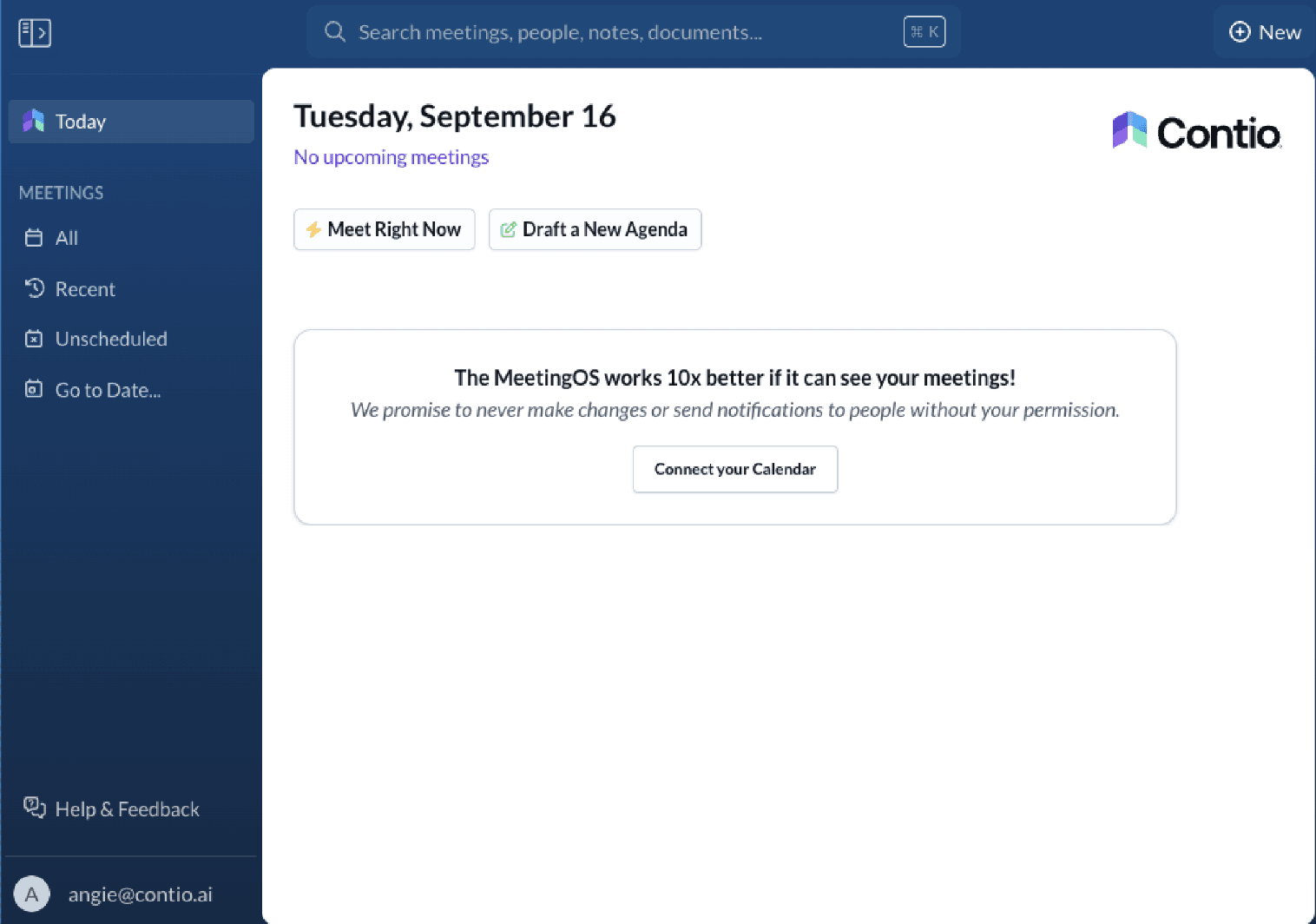
Select the Add Integration button for the calendar you use (Google Calendar or Microsoft Outlook). You do not need to add both.
On the Link Calendar screen, click the Connect button.
Select the account you want to connect from the pop-up window, and click the Continue and Allow buttons to grant Contio access to your calendar.
Click the Finish button in the Contio window in the web browser.
Select the Today menu item and Refresh the page to see your upcoming meetings. Your scheduled meetings should now be visible.
Close the browser window.
Note: You cannot capture meetings in the web version of MeetingOS. Only the desktop app is able to capture system audio, so we'll do that next.
3. Install the Contio MeetingOS Desktop App
Installation Instructions for Mac users
If you’re using a Mac, download the Contio MeetingOS app for MacOS.
Once you download the .pkg file, double click it to open the Contio MeetingOS Installer. Follow the instructions in the pop-up window to install Contio MeetingOS. When it's complete, click Close to close the Installer window, then click Move to Trash to delete the Installer. MeetingOS will open automatically in a few seconds.
Installation Instructions for Windows users
If you’re using a Windows computer, download the Contio MeetingOS app for Windows.
Once you download the .exe file, you'll likely get a warning that the app may not be safe to download. Our app is now verified by Microsoft, but you'll likely have to click the menu arrow beside Delete and select Keep or Keep Anyway.
Double click the file in your Downloads folder to start the install process. Open the MeetingOS app by double clicking the new Contio MeetingOS desktop icon, or launch it like your other apps. You can then delete the .exe file.
4. Sign into your Contio Account on the Desktop App
You can use your Google or Microsoft account to sign into the MeetingOS desktop app, or enter your email address to receive a verification code.
5. Capture Your First Meeting!
In the MeetingOS app, click the Meet Right Now or Capture Notes (for a scheduled meeting) button to start capturing. Yes, it's that easy!
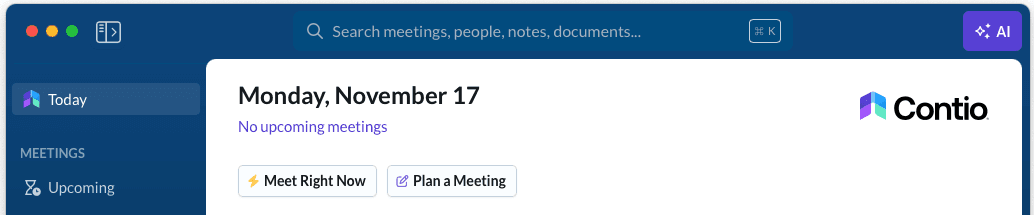
Note: You’ll need to capture a couple minutes of audio in order for MeetingOS to generate a meeting summary.
Be sure to click the End Meeting button at the end of your meeting. MeetingOS will instantly start summarizing the meeting from the transcript that was captured.
Once the notes have been generated, you'll be able to select a more or less detailed summary of the notes using the Meeting Summary slider bar. If you want to regenerate the notes, simply move the slider and click the Regenerate button.
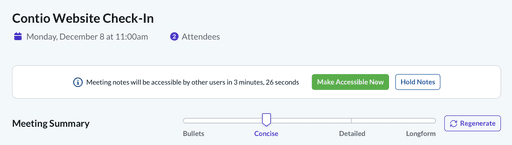
You can edit the notes directly in the MeetingOS window. Once you're done editing, click the green Make Accessible Now button to share the meeting notes with other attendees using MeetingOS. Or click the Hold Notes button to finish editing the notes later on. When you're ready to share the summary, click the blue Share button and select the option you'd like for sharing the meeting notes with other attendees. If you don't select either Make Accessible Now or Hold Notes, the meeting summary will be automatically shared with all attendees who use MeetingOS (it will not automatically email the summary to all attendees).
6. You're Ready to Capture More Meetings
Congratulations on capturing your first meeting with MeetingOS! Now we’d love your help testing it even more. Each meeting you capture helps us refine the AI, squash bugs, and build something truly brilliant.
Contact Us: Have Questions? Share your Feedback
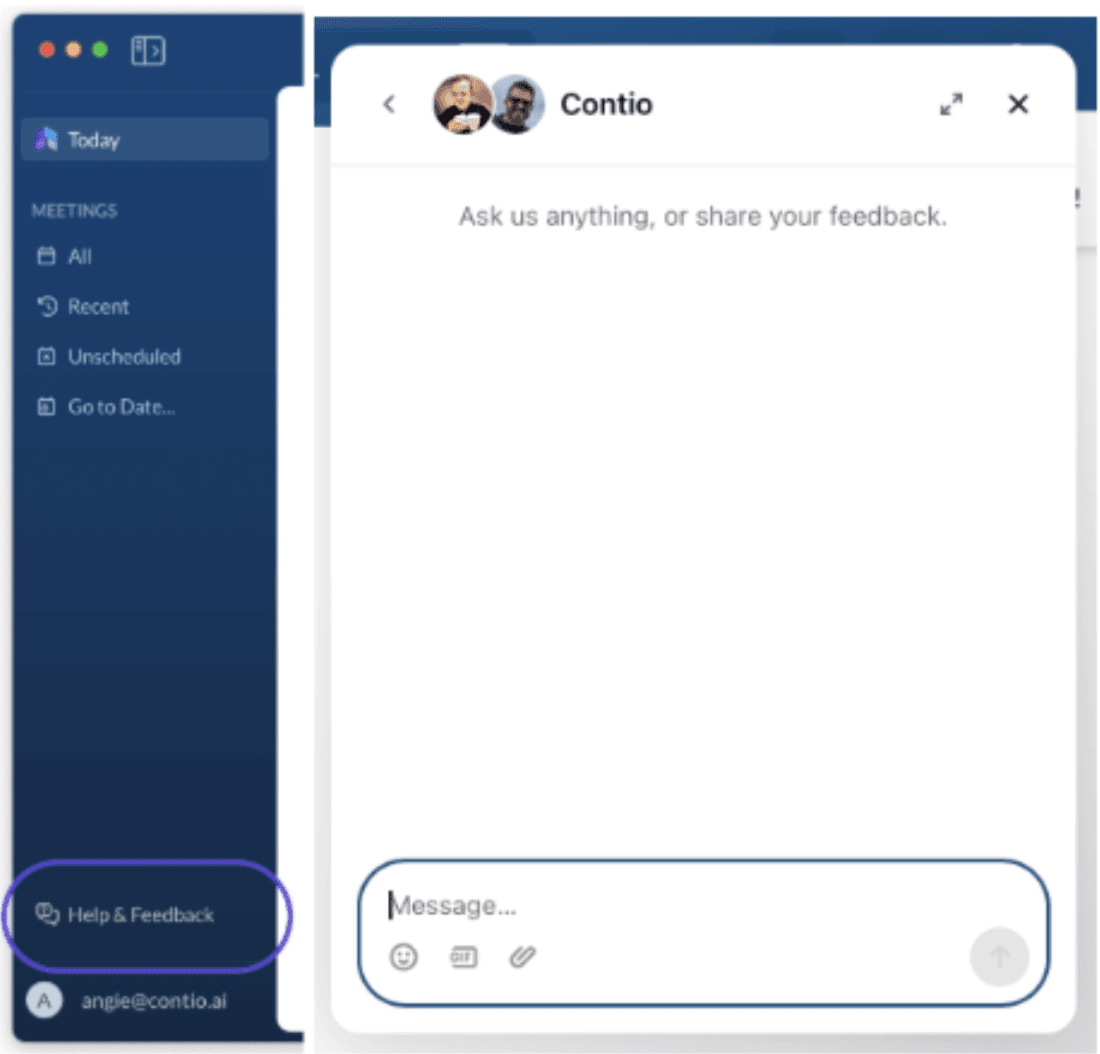
Click the Help and Feedback button in the bottom left-hand corner of the MeetingOS app to contact us, and a chat window will pop up. We look forward to hearing your feedback!
Thank you again for being one of our early Beta testers — we truly appreciate your time and feedback.